Migrating Blob Containers
Migrating Blob Containers
Migrating Blob Containers
We are in the process of migrating from using a shared blob storage account and separate blob containers to each client having their own blob storage account. This keeps their uploads completely separate from eachother. The process of updating these records includes 1. DATABASE work and 2. CODEBASED work. First lets work on Database things.
You will be exporting the current database and doing a find/replace on the old path with a new path. So download your production database and then open with VS code or the IDE of your choice. Then do a find/replace. I have been making a folder on my desktop for BLOB MIGRATION PROJECT and then I make a folder for the client. This is where I save the DB and the images. The new account you create in Azure Storage explorer should follow this naming convention:
https://clientlineweavernet.blob.core.windows.net
Where "clientXXXXXcom" (net, org, etc) is the client domain, XXXX denoting the sitename.
Find and replace:
For
Once you do a find and replace you can SAVE AS that new database. Then you're going to move on to creating a new account and container. Once that container is made and you've added your images there, you can drop your current production DB and then import your new DB. PLEASE*** Before you do this step make sure you've uploaded the images into their new location. I think I put that lower in this process.
Next:
You'll need to create a new storage account in portal.azure.com. You can find the creds to login in 1pass. This page shows you all the stuff you have to fill out (make it look like clientlineweavernet)
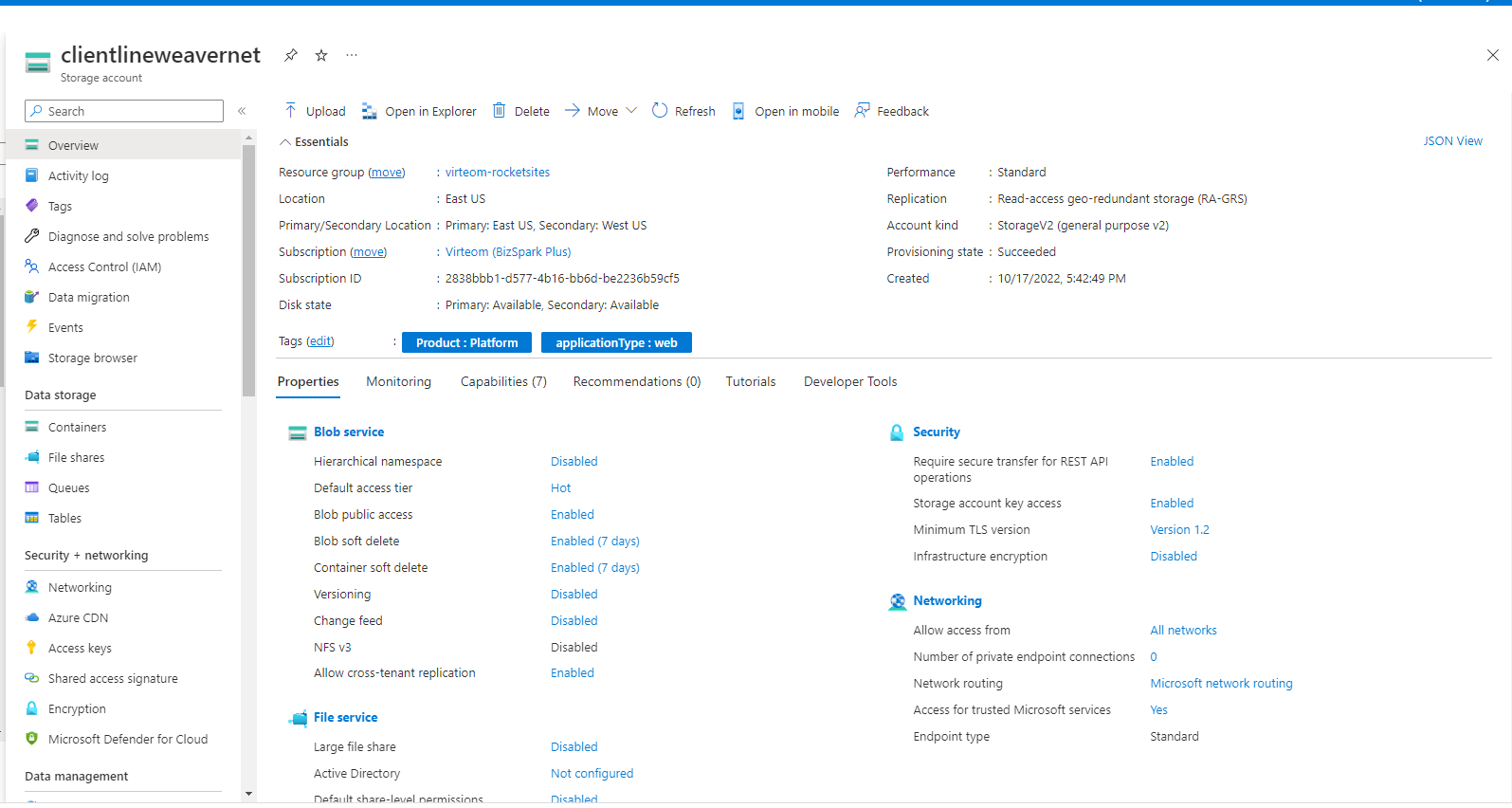
You'll want to pick virteom-rocketsites as the resource group.
Then add some tags to it:

Once you set up your new container and make sure it has the correct permissions you can download the images from Azure CDN (virteom cdn) to your machine and then reupload them to the new CDN. You'll want to use the browser based Azure File Explorer for this. Once your images are there you can go and drop/import the new DB with the new paths. Verify on the live site that your paths are right and spot check that all your images are showing up. You can also go onto Edge, which was the culprit, and try to open a PDF. This should verify that the red screen issue is gone.
You're going to want to make sure that Public Read Access is set to "Blob" - by default sometimes it's set to "None". This is on the level of the container.

2.
Besides changing out the paths in the database, you'll also have to check in the code for any hard-coded paths. Then you will need to edit the config file(s) so that they all have the new paths, also. So you will need code access to complete this process.
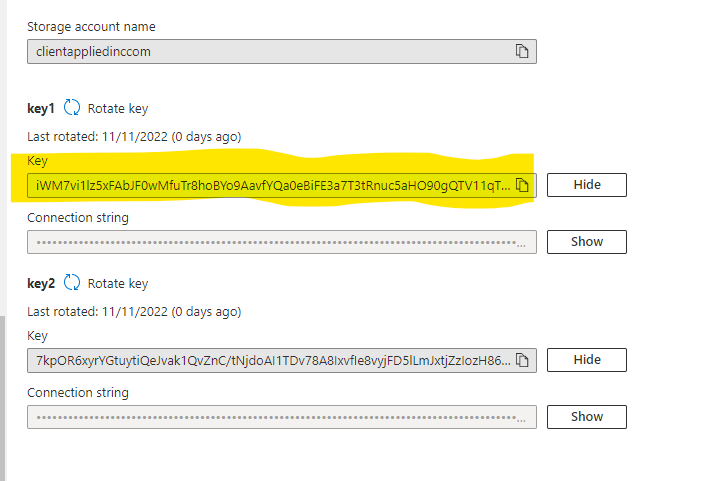
In the config files you need to change two lines:
define("BLOB_STORAGE_CONNECTION", "DefaultEndpointsProtocol=https;AccountName=virteomdevcdn;AccountKey=CEqmaSxnod7OdQE0YG8MgukkAu3cFzy+lxBTpe1xptRF7avFOoeWSMMtJ6cvmfPDwl4Z1vbHhz53uQvuXrTD2Q==");
define("CDN_STORAGE_CONNECTION", "DefaultEndpointsProtocol=https;AccountName=virteomdevcdn;AccountKey=CEqmaSxnod7OdQE0YG8MgukkAu3cFzy+lxBTpe1xptRF7avFOoeWSMMtJ6cvmfPDwl4Z1vbHhz53uQvuXrTD2Q==");

You will need to change the account name and the key. Use the key highlighted to make your change. You want the one that doesn't have any slashes /
Once you've done this you can do a find/replace on the CODEBASE. You will want to leave the paths in any includes that are in sty_global (unless the file lives on the new CDN) the same. There are some files that will continue to live in virteomcdn and be shared resources. So do a find and replace for "virteomdevcdn" and find any hardcoded images or files and replace them with your new path. Then push all your code up to master.