Setting Up Facebook/Instagram Ads for Brand Awareness
Steps for Creating a Brand Awareness Campaign
Steps for Creating a Brand Awareness Campaign
Creating Facebook & Instagram Ads for Brand Awareness Campaign
Overview:
In this article we'll teach you our process for creating brand awareness ads. The process is simple, the challenge will be... how creative can you get when creating the ads?
Step 1: Download the Template
The first step is to download the Photoshop Template. It is very important to use the template. This template has been designed to fluxuate both vertically and horizontal for all Instagram and Facebook Types.
See the bright blue lines. Those are safe zones. Do not make text or any content outside of those lines, otherwise it may get cut off. Also, notice how the ad is in three sections... There's a top middle and bottom. Sometimes depending on ad type you may choose to only use the photo area and the bottom or the logo area and the photo. This will all become a lot more clear as we go.

Click here to download the template... facebook-ad-template.psd
Step 2: Creating the Ad
Now you just need to be creative and make and add. Open the Photoshop template and start replacing content with your own. Remember to save your new photoshop out on the client drive in the client folder when you are done. Here's a link to the client drive.
Google Drive Note: Make sure you are logged into virteom@gmail.com to upload your file.
Step 3: Obtain Media Art for Ad
You may want to obtain media for your ad. Here's a few resources where you can obtain roylaty free images and media to add your ad. You'll need access to our 1 Password account to get the username and password to each one of these accounts.
https://stock.adobe.com/ Its $2.00 per photo
https://motionarray.com/ All free under our account
https://www.storyblocks.com/ Great for live videos and photos
https://create.vista.com/ Free Graphics, not sure how free it really is
https://www.yayimages.com/ Large library of photos. Obtain our login to download
https://iconscout.com/ - Great for icons to add to your designs
https://www.figma.com/ You can obtain a free account and use to make designs.
Posting to Facebook Meta Business Center
The only way to create ads and then post is to have access to the Facebook Ads account that Virteom manages. You'll need to ask Dan to invite you to the account. It does require connecting your personal Facebook account as an Administrator. Dan may be able to do it with your business email instead as well. Just ask.
This is the direct link to the Virteom Facebook Ads Account where you can start to manage ads.
Link Client to Our Meta Facebook Manager
The client facebook page needs to be linked to our meta manager. Reach out to the client and ask them for their Facebook Login Credentials. Login and make dan@dancarbone.com an admin of their Facebook page account. From there you'll be able to link them to Meta.
Create a Facebook Ad Campaign for Client
Click "Create" and Follow the prompts.

Select "Reach and Frequency" and then "Traffic" to send the user to the client website. Click "Continue"

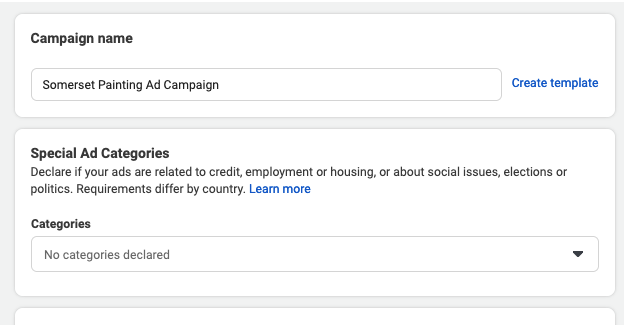
Give the campaign a name. I like to end it with "Campaign" because it can get confusing what level you are on inside of Facebook. Skip other questions and click "Next"